
Use this page to migrate your Zambia Online email to the new system as per notice here already sent to you. Follow the instructions below the form very carefully. NOTE: Your normal Yandex Mail password will not work for the migration so you need to set up an “app password” as explained below the form.
PRE-MIGRATION SETUP
PART A: Enable IMAP email retrieval.
STEP 1
Log in from the browser using LAPTOP or COMPUTER (or use desktop version of website on mobile device) at:
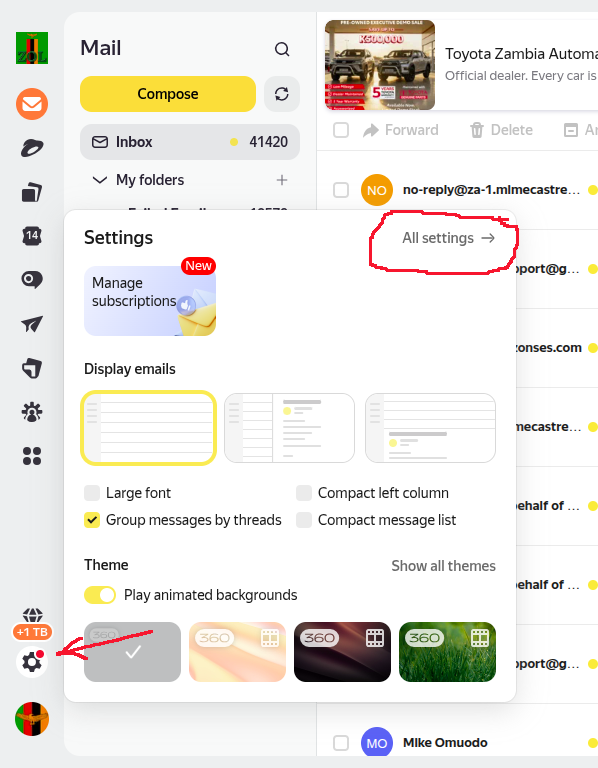
After logging in and you can see your Inbox, go to “All settings” using the gear icon in the bottom left corner.
STEP 2
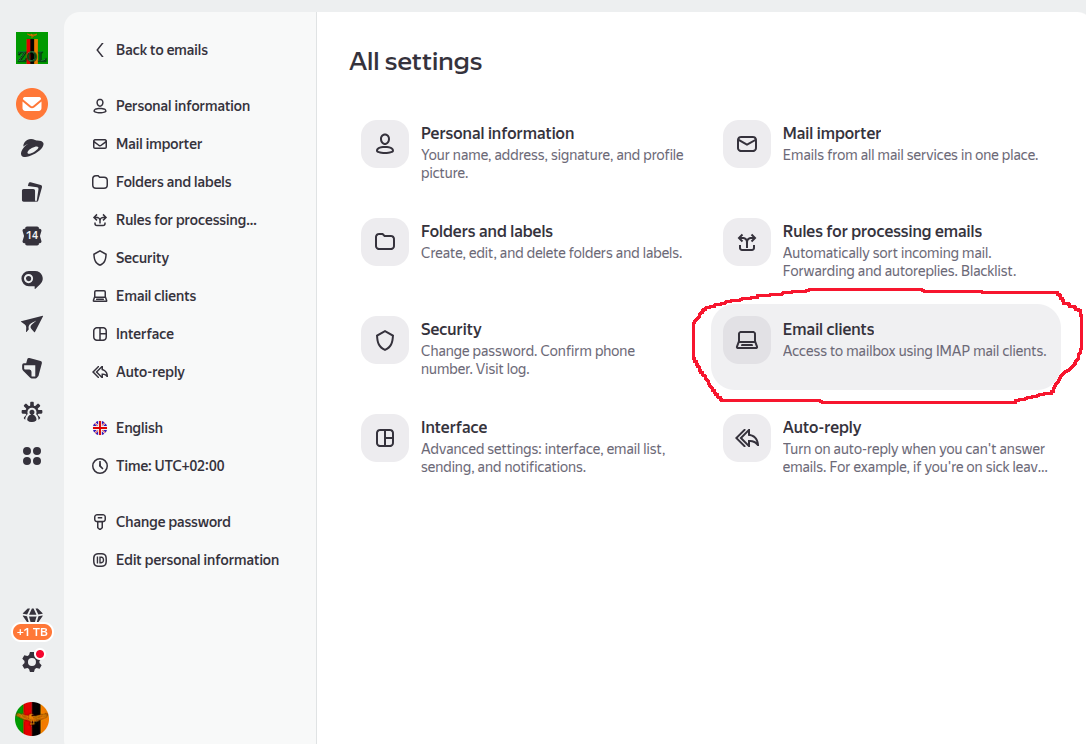
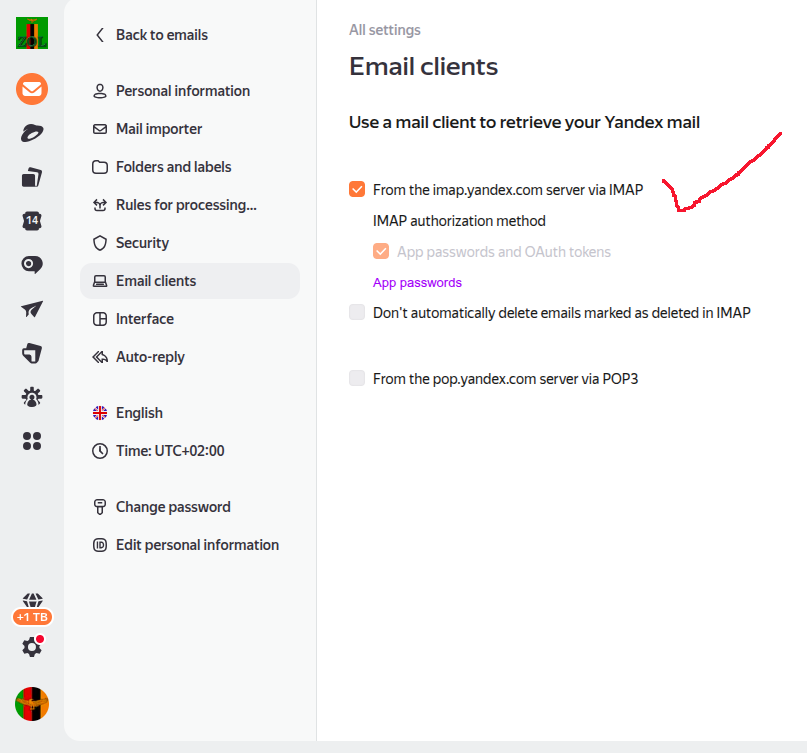
On the page that opens, go to “Email clients”.
STEP 3
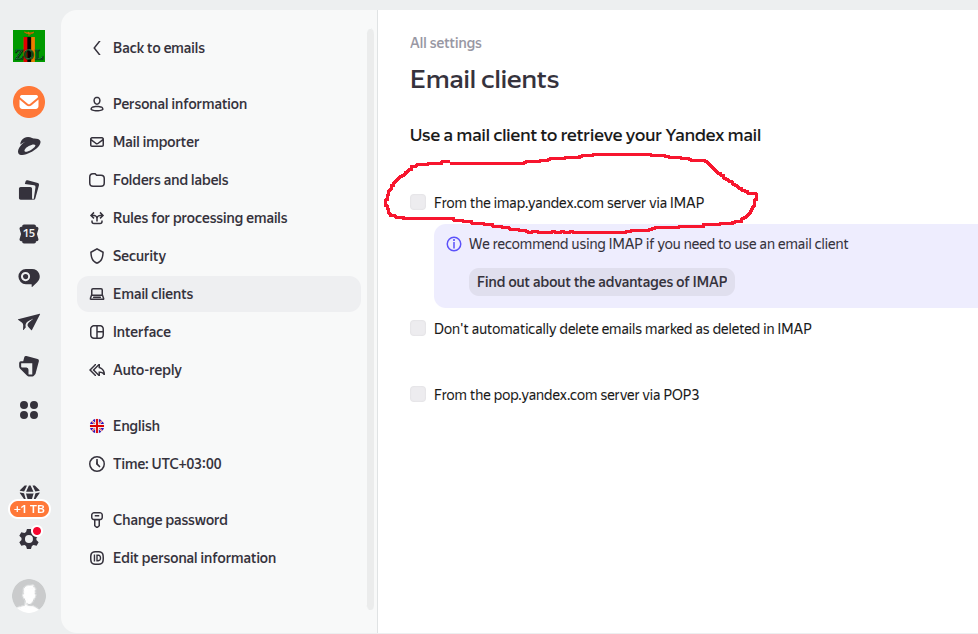
On the “Email clients” page, you will find text saying “Use a mail client to retrieve your Yandex mail” and a checkbox.
STEP 4
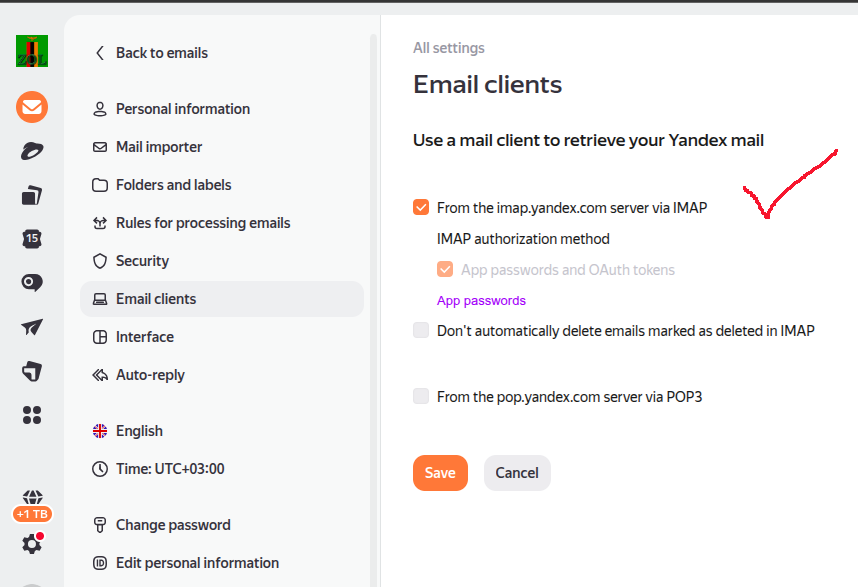
Tick the checkbox and Save.
STEP 5
The page looks like this. Go back to your Inbox.
PART B: create an “app password” as follows.
STEP 1
Log in from the browser using LAPTOP or COMPUTER (or use desktop version of website on mobile device) at:
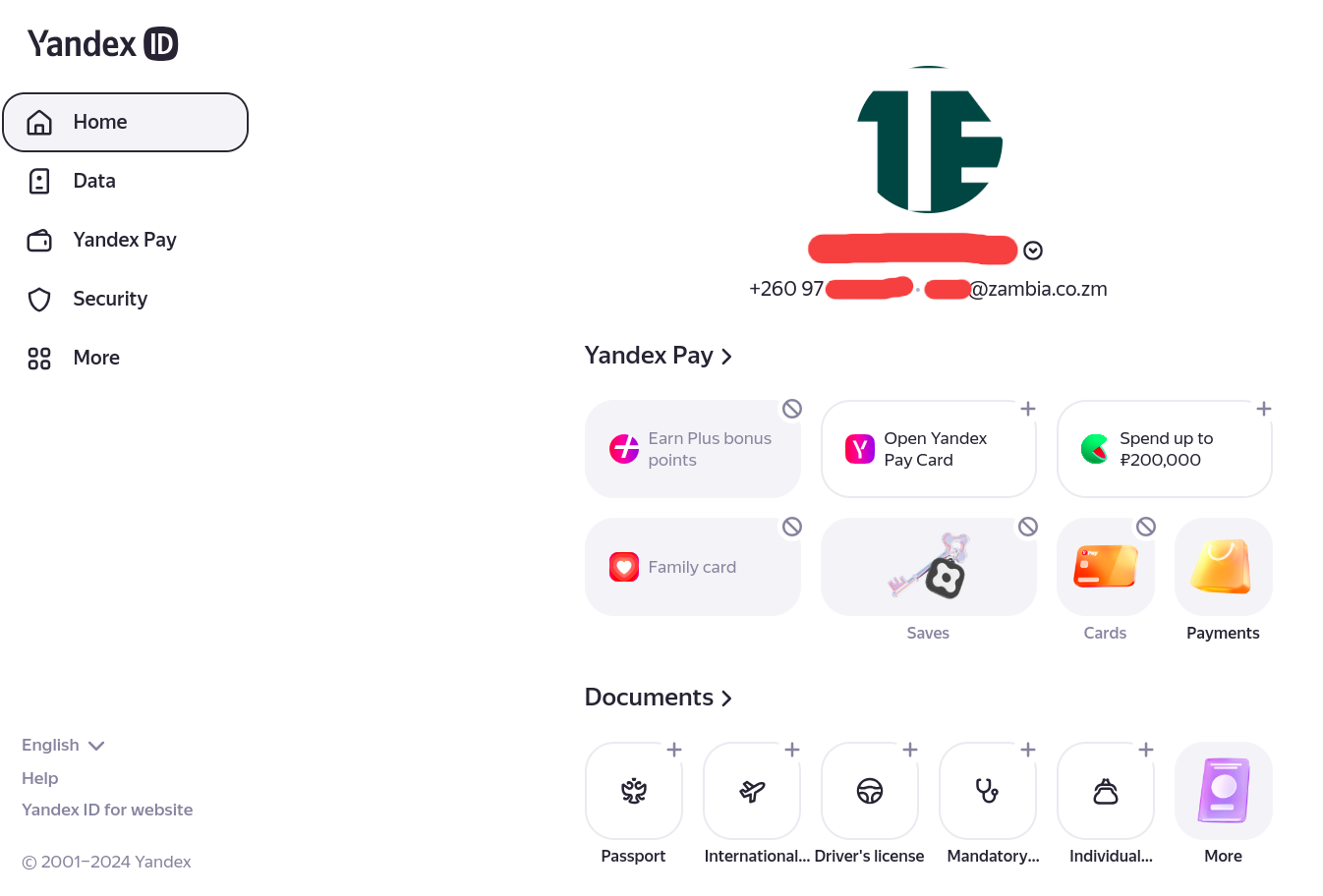
After logging in, go to “Security” (left menu).
STEP 2
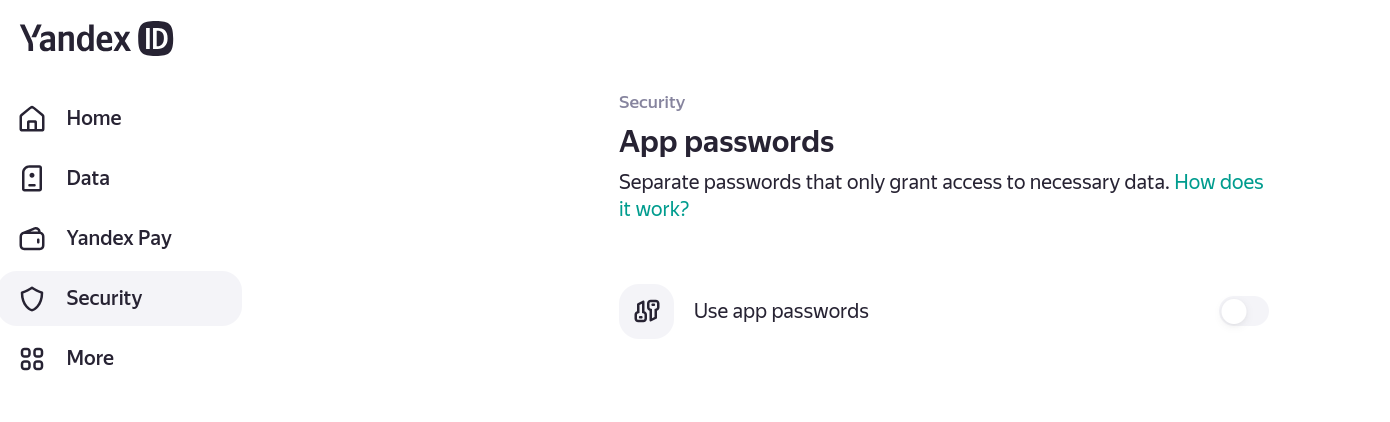
Scroll to the bottom of the Security page that opens and go to “App passwords”. Click on “Use app passwords”.
STEP 3
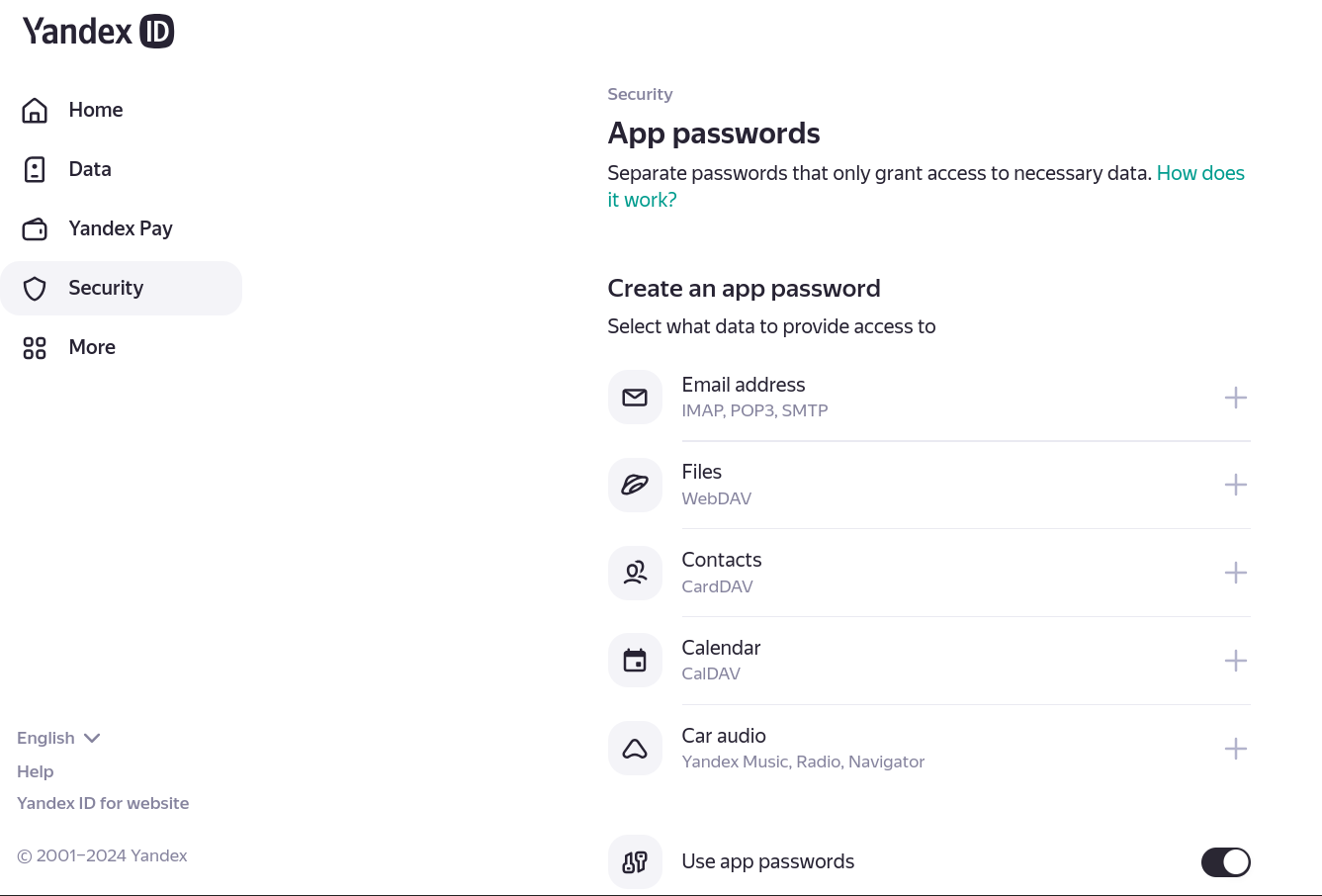
Then click on “Email Address” which is the first choice on the list that will appear.
STEP 4
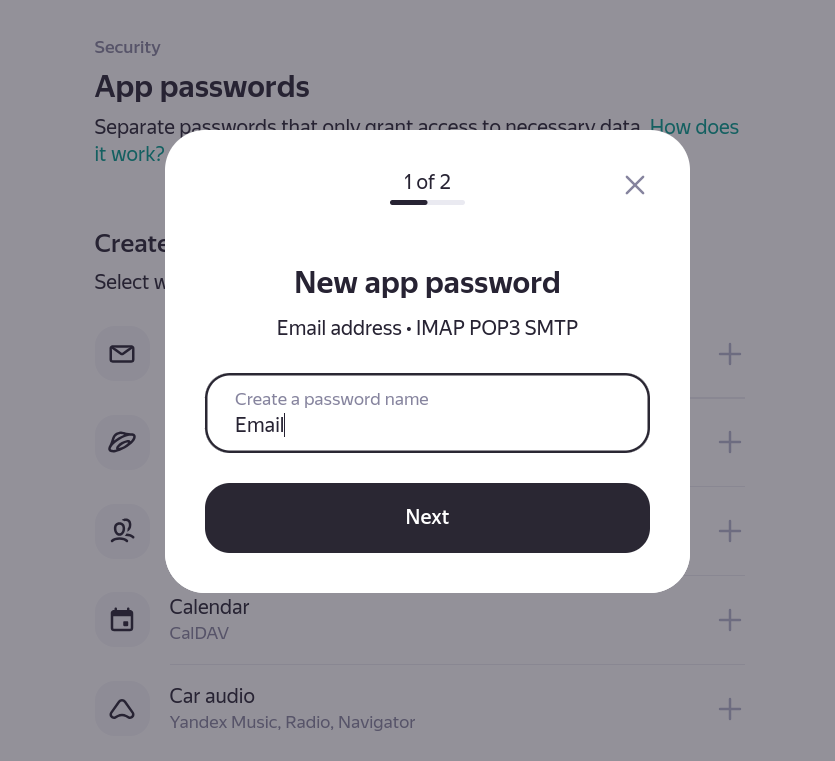
A popup will show and then type in any name for this password just to distinguish it (eg “Migration Password”). Click “Next”.
STEP 5
An app password will then show on the screen. It is ONLY SHOWN ONCE so you need to write it down or copy it or save it somewhere.
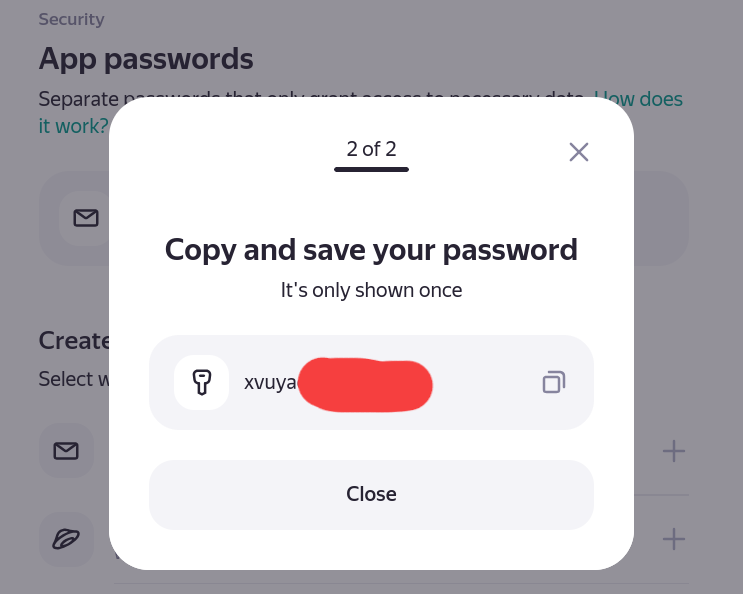
Use this as your Yandex Mail App password in the migration form. Set a temporay password in the new system.